How to Make a Desktop Pet on Your Computer (3 Ways)
You can guide an AI, build the whole app, or use DeskBub to put a pet on your desktop. The right route depends on the result you want and how much you want to make yourself.
The quick answer
There are three practical routes.
Create a pet with Codex
People who already use ChatGPT and enjoy guiding an AI workflow.
Build a standalone desktop pet
Developers who want complete control over behavior and packaging.
Use DeskBub
Anyone who wants to try Kaka free, or a pet owner who wants a photo-based result.
Want a desktop pet today? Try Kaka free on Windows or Mac. Want to see your own pet on screen? Turn a photo of your dog, cat, or another pet into a custom desktop companion. If you enjoy making things, compare the Codex and standalone build methods below.
First, define the result
What is a desktop pet?
A desktop pet is a small animated companion that appears on your computer screen. A true desktop pet is not just a wallpaper or a video player: it can float above other windows, move to a different part of the screen, and react when you interact with it.
That definition matters because the three methods below do not produce exactly the same thing. A ChatGPT pet helps you follow activity inside supported ChatGPT experiences. A standalone build can behave however you program it. DeskBub is an independent Windows and Mac app designed to keep a real pet visible above everyday apps.
Create a custom pet with Codex
If you use the ChatGPT desktop app, its Pets feature can start a custom-pet workflow for you. OpenAI's current instructions are straightforward:
- 1
Open Settings → Pets in the ChatGPT desktop app.
- 2
Choose “Create your own pet.” The app installs the bundled hatch-pet skill and opens a new task.
- 3
Describe the pet you want. Include a clear reference photo and the features that must stay recognizable.
- 4
When Codex finishes, return to Settings → Pets, choose Refresh, and select the new pet.
Example prompt
Create a custom pet based on the attached photo of my pet, Milo. Keep his black ears, white muzzle, round eyes, and red collar recognizable. Make the animation calm and readable at a small desktop size. Use a transparent background and check that the motion loops cleanly.
Why choose it
It is an approachable way to guide an AI through creating and checking the animation assets.
Know the boundary
The result is a custom pet for supported ChatGPT interfaces—not an independent DeskBub app pet.
OpenAI says desktop-app custom pets are stored locally and do not automatically sync to ChatGPT on the web. Read the current official Pets instructions before starting, because product interfaces can change.
Build a standalone desktop pet yourself
This route gives you the most control. It also means building more than an animation. The “pet” usually lives inside a transparent, borderless application window, while the app manages movement, clicks, menus, system startup, and packaging.
Your minimum build checklist
Transparent animation
Prepare a transparent sprite sheet, WebM, PNG sequence, or another format your framework can render cleanly.
Borderless window
Remove normal window chrome and keep the background transparent.
Desktop behavior
Add always-on-top, dragging, click handling, Show/Hide, size, and opacity controls.
Animation states
Decide when the pet is idle, happy, sleeping, moving, or reacting.
System integration
Add a tray or menu-bar control, startup settings, and safe quit behavior.
Packaging and QA
Create separate Windows and macOS builds, then test permissions, scaling, CPU, memory, and multiple displays.
Godot is a good fit when your pet behaves like a small game. Electron or Tauri works well when you are comfortable with web technologies. Python with Qt can be useful for a personal prototype. Whichever route you choose, test the transparent window and click behavior early; those parts determine whether the result feels like a desktop pet rather than a video with no border.
Use DeskBub with your own pet photo
DeskBub is for the person who wants the result—not another software project. You provide a clear photo of your actual pet, DeskBub turns it into transparent animations, and the desktop app handles the floating window and controls on Windows or Mac.
See how a pet photo becomes a desktop pet, or compare the options on our custom desktop pet page. If you want to feel how the app works first, try Kaka free.
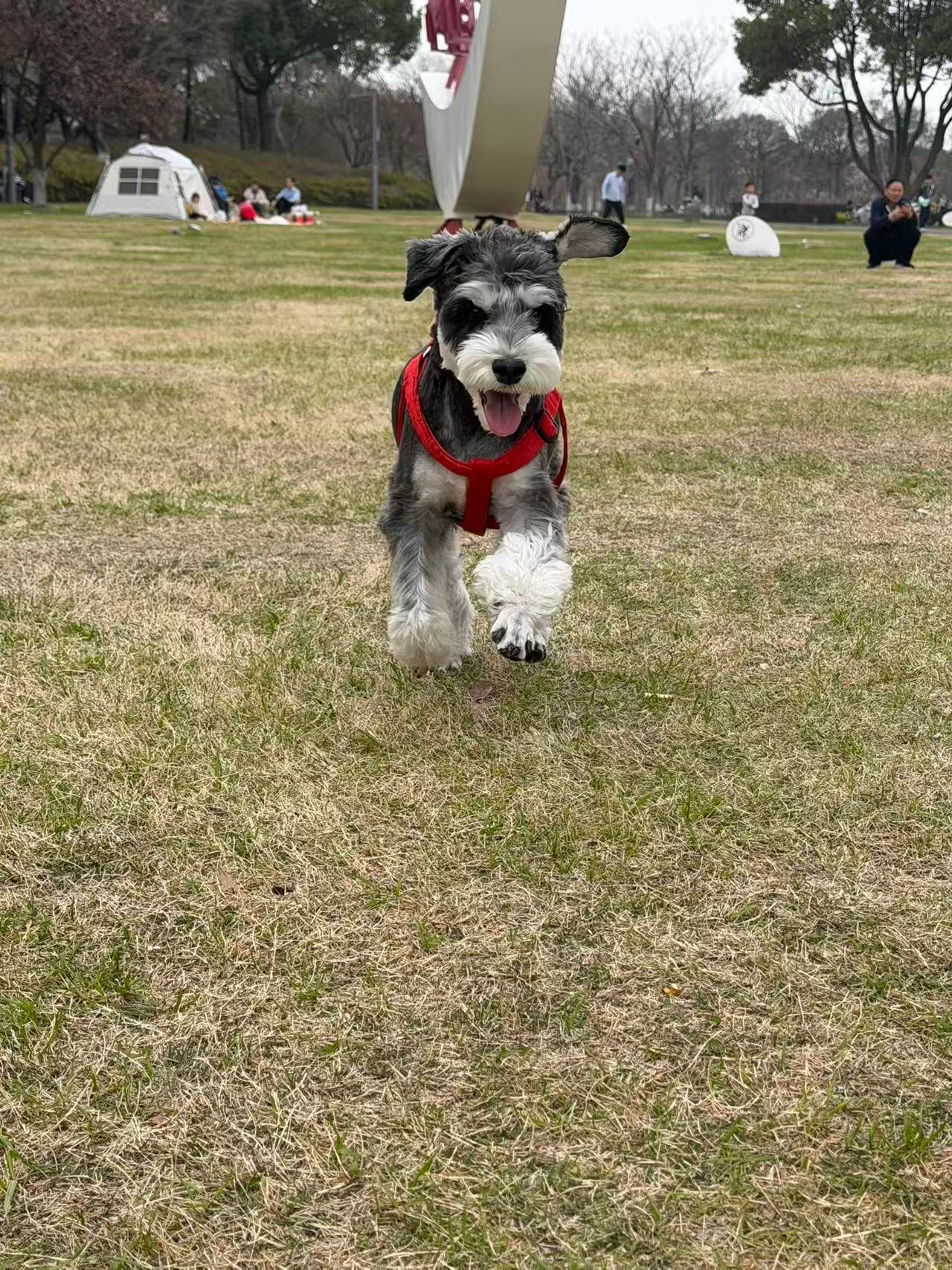 ONE REAL PET PHOTO
- 1
Upload one clear photo
Start with a dog, cat, rabbit, bird, or another pet.
- 2
Choose your option
Pick the level that matches the number of actions you want.
- 3
Get transparent animations
Review the generated movements made from your pet.
- 4
Pair the desktop app
Enter the pairing code and place your pet above your apps.
Side-by-side
Which method should you choose?
| Method | Best for | Effort | Main result |
|---|---|---|---|
| Create a pet with Codex | People who already use ChatGPT and enjoy guiding an AI workflow. | Low to medium | A custom pet for supported ChatGPT interfaces. |
| Build a standalone desktop pet | Developers who want complete control over behavior and packaging. | High | Your own independent desktop application. |
| Use DeskBub | Anyone who wants to try Kaka free, or a pet owner who wants a photo-based result. | Low | Free Kaka or your own pet as a custom Windows or Mac desktop companion. |
Choose Codex if you already use ChatGPT and enjoy directing the creation process. Build your own app if complete control matters more than time. Choose DeskBub if the non-negotiable part is simple: the companion on your desktop should be your own pet.
Better input, better result
Choose a photo that can survive animation.
Whichever AI-assisted route you use, the reference photo does a lot of the work. Start with an image that makes your pet's identity easy to read.
Use a sharp, well-lit photo
Natural light and visible fur detail give the process more information to preserve.
Show the parts you want animated
A full-body result needs a photo where the legs, paws, tail, and ears are not hidden.
Keep the face recognizable
Choose the expression and angle that feel most like your pet.
Avoid heavy overlap
Hands, blankets, furniture, and other animals can make clean separation harder.
Not ready to upload?
See what a real desktop pet feels like first.
Kaka comes with DeskBub for free. No account or payment required—download the app and meet him on your Windows or Mac desktop.